

Password Reset
Student needing to password reset or first-time login, please go to https://swtxc.edu/. On the "Login" drop-down menu, click on Office 365, Self-Service, or Canvas.
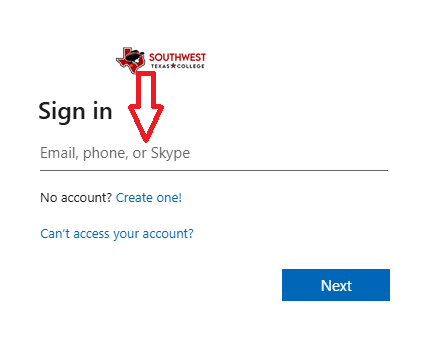
You will be directed to a screen that is requesting your college email address. Please enter in the full swtxc.edu email and press next.
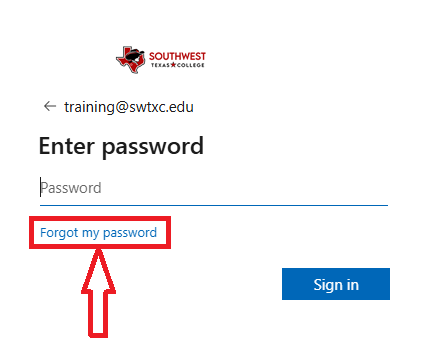
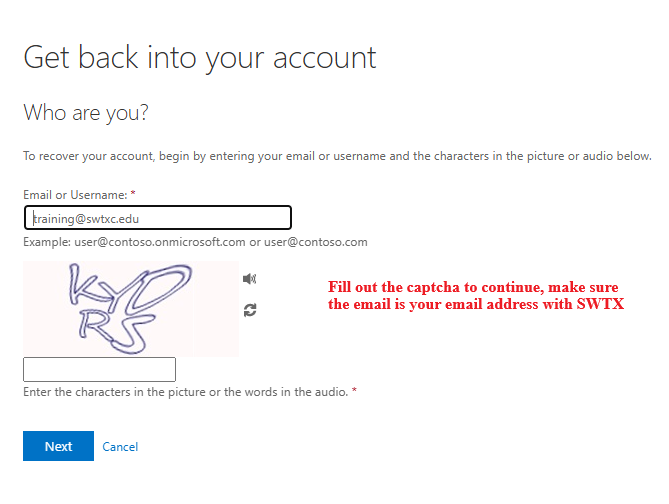
On the next screen, there will be a "Forgot My Password" link. Please click on that link. It will redirect you to a new tab with the top reading "Get back into your account". Make sure the email address is your full @swtxc.edu email. Once you have filled out your email, type in the characters on the screen below the box.
Once you have entered your correct email and CAPTCHA characters, it will proceed to the verification screen. Here, there should be options listed to verify your account. The options that may be presented are:
Email
Text my mobile phone
Call my mobile phone
Approve a notification on my authenticator app
Enter a code from my authenticator app
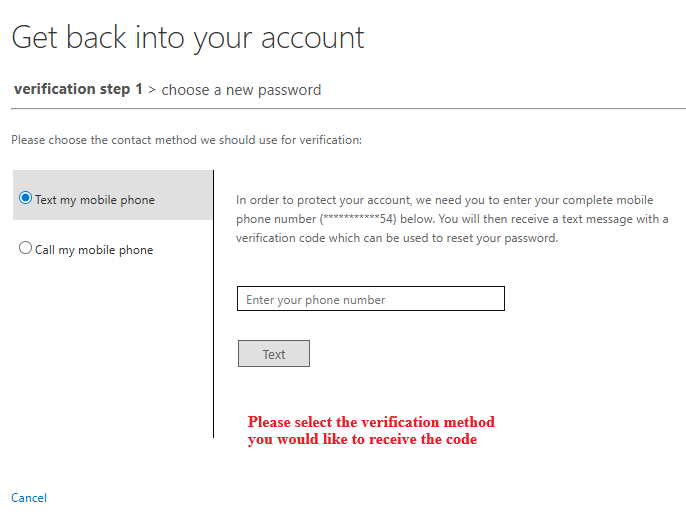
Please select two of these options and enter the correct information. After the second verification, you will be able to enter a new password and confirm it by typing it again.
Once you create a new password, this will be your password to Self-Service, Canvas, and Office 365.
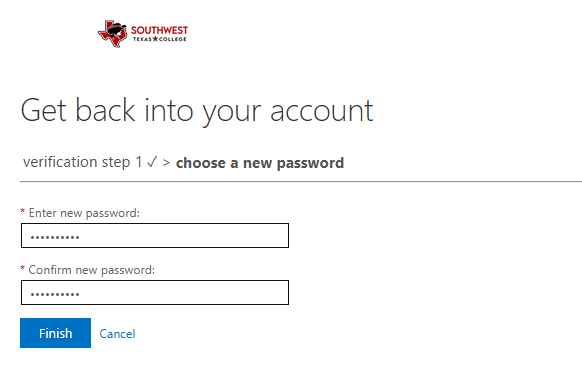
If you continue to have issues, please call the Service Desk (830) 591-7323.
- Academics
-
Career Pathways
- Art
- Arts, Humanities, and Communications
- Associate of Science in Engineering Science
- Biology
- Business
- Business, Industrial, and Technical Studies
- Chemistry
- Economics
- Education (Teaching)
- English
- Government
- Health Sciences
- History
- Kinesiology
- Languages
- Mathematics
- Nutrition & Diet Therapy
- Philosophy
- Physics
- Psychology
- Public Safety and Human Services
- Science Education
- Science, Technology, Engineering, and Mathematics (STEM)
- Sociology
- Speech
-
Programs
- Associate Degrees
- Certificate Programs
-
Certifications & Technical Programs
- Air Conditioning & Refrigeration Certificate Level 1 Basic and Advanced and A.A.S. (47.0201)
- Aircraft General Maintenance Level 1 Certificate / Airframe Mechanics Level 2 Certificate (47.0607)
- Automotive Technology Certificate Level 1 Basic and Advanced and A.A.S. (47.0604)
- Business Management Occupational Skills Awards, Certificates, and A.A.S. (52.0201)
- Business Office Technology Occupational Skills Awards, Certificates, A.A.S., and Enhanced Skills Certificate (52.0407)
- Computer Information Systems A.A.S. (11.0101)
- Construction Science Certificate Level 1 and A.A.S. (46.0000)
- Cosmetology Certificate (12.0401 and 12.0413)
- Criminal Justice A.A.S. (43.0107)
- Cybersecurity Specialist Certificate Level 1 Basic and Advanced and A.A.S. (11.0101)
- Diesel Technology (47.0605) and Diesel Technology Specialized in Heavy Equipment
- Early Childhood Studies Occupational Skills Award, Certificate, and A.A.S. (19.0706)
- Emergency Medical Technician Certificate Level 1, Paramedic Level 1 and Paramedic A.A.S. (51.0904)
- Law Enforcement Academy Certificate Level 1 (43.0107)
- Mental Health Certificate Level 1 Basic and Advanced and A.A.S. (511500)
- Patient Care Technician Certificate Level 1 (51.3902)
- Radiologic Technology A.A.S. (51.0911)
- Registered Nursing (51.3801)
- Surgical Technology (51.0909)
- Vocational Nursing (51.3901)
- Welding Technology Certificate Level One Basic and Advanced and A.A.S. (48.0508)
- Wildlife Management (03.0601)
- Carl D. Perkins Grant
- Adult Education & Literacy
- Continuing Education
- Online Degrees
- Catalog & Schedule
- Academic Calendar
- Search for Classes
- My SWTX
- Smart Classrooms
- Library
- Testing Center
- Academic Advising
- Disability Support Services
- Full STEaM Ahead-Title III
- DHSI VIDA